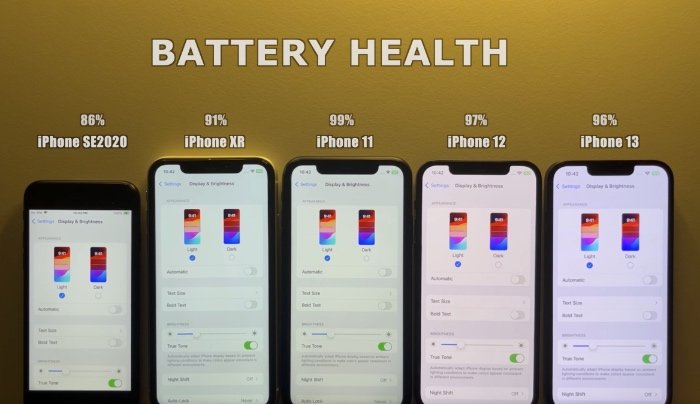
When you hit that "Update Now" button for iOS 18, there's a mix of excitement for new features and that familiar flutter of anxiety: "What's this going to do to my battery?" It's a question many iPhone users grapple with every major update, and for iOS 18, it's no different. In fact, some early reports have flagged significant battery drain and even noticeable drops in battery health percentages shortly after making the switch. So, if you're wondering about your iOS 18 Battery Life: What to Expect After Updating, you're in good company, and we’re here to demystify what’s happening under the hood.
At a Glance: Your iOS 18 Battery Expectations
- Initial Drain is Common: Expect temporary increased battery usage for 24-72 hours as your iPhone re-indexes and optimizes. Don't panic immediately!
- Battery Health Drops Can Happen: Some users have reported a dip in maximum capacity percentage (e.g., from 96% to 92%) after updating. While concerning, it doesn't always reflect immediate functional battery life.
- New Features = More Power: iOS 18 introduces new capabilities. If you dive into them heavily, battery drain will naturally increase.
- Older Batteries Struggle: iPhones with aging batteries (below 80% health) are more likely to experience significant issues with new, demanding software.
- Bugs Are Possible: Software glitches can sometimes cause abnormal drain. Keep your iOS updated for potential bug fixes.
- You Have Control: Many settings can be adjusted to optimize battery life. Don't underestimate the power of a few tweaks.
The Post-Update Jolt: Why Your iPhone Might Feel Thirsty
It's a tale as old as time (or at least, as old as iOS updates): your phone gets a fresh coat of digital paint, and suddenly it can't hold a charge like it used to. This isn't just your imagination. The immediate aftermath of an iOS update, especially one as significant as iOS 18, often involves a period of intense background activity that can make your iPhone's battery look like it's running a marathon.
Let's break down the core reasons for this initial battery hiccup:
The Great Re-indexing Act: Your iPhone's Internal Spring Cleaning
Think of your iPhone as a highly organized library. When you update its operating system, it's like getting a brand new cataloging system. Every book (app), every shelf (setting), every section (system process) needs to be re-indexed and optimized for the new system. This "re-indexing of system processes" is a computationally intensive task. Your iPhone is busy optimizing apps, re-indexing photos, scanning files, and adapting all its internal workings to the new iOS architecture. This happens largely in the background and can significantly increase CPU usage, leading to higher power consumption.
This isn't a bug; it's a feature of a robust operating system adapting. Typically, this indexing process takes anywhere from 24 to 72 hours, sometimes a bit longer depending on how much data you have. During this time, it's normal to see your battery percentage drop faster than usual.
New Features, New Demands: The Lure of iOS 18's Latest Tricks
iOS 18 is packed with exciting new capabilities, from deeper customization options to potential AI enhancements and redesigned apps. When you update, you're naturally curious to explore these changes. You might spend more time experimenting with new home screen layouts, trying out new features in Messages, or exploring the redesigned Control Center. This increased screen time and active engagement with new, potentially more demanding features directly translates to increased battery drain.
It's like getting a new gadget; you play with it more in the beginning. This "increased usage after update" isn't a problem with iOS 18 itself, but rather a reflection of your (and our!) natural curiosity.
Silent Activations: When Settings Sneakily Change
Sometimes, a major update can reset or activate certain settings by default that weren't active before, or that you had previously disabled. Things like "Always-On Display" (if your model supports it and it's re-enabled), background app refresh for certain apps, or location services for new system features might get silently re-toggled. These seemingly minor adjustments, especially if several occur, can collectively contribute to more significant battery consumption.
Beyond the Jolt: When Battery Issues Become More Persistent
While an initial dip in battery performance is often temporary, some users, especially after iOS 18.3, have reported more alarming symptoms. Stories of battery health percentages dropping dramatically – for example, from 96% on iOS 17 to 92% just after updating to iOS 18 – are concerning. If your battery woes extend beyond a few days, or if you notice a significant hit to your iPhone's "Maximum Capacity" percentage, you might be dealing with something more than just temporary indexing.
Here are the culprits behind more stubborn battery problems:
The Aging Battery: A Mismatch with Modern Software
An iPhone is a marvel of engineering, but its battery is a consumable component with a finite lifespan. As your iPhone's battery ages, its chemical health deteriorates, and its ability to hold a charge diminishes. Apple generally considers a battery healthy if its "Maximum Capacity" (found in Settings > Battery > Battery Health & Charging) is above 80%.
Older iPhone models, especially those with battery health already below this 80% threshold, often struggle significantly with new, more demanding software updates. iOS 18, with its advanced features and optimizations, might simply be too much for a chemically aged battery to handle efficiently. It's like trying to run a marathon on an old car engine; it might start, but it won't perform well or last long. In such cases, the update merely highlights an underlying hardware limitation, rather than causing it directly. If you're pondering whether iOS 18 is worth it, an aging battery could be a key factor in your decision.
The Uninvited Guest: Software Bugs and Glitches
Let's be honest: no software is perfect. Sometimes, even after rigorous testing, a new iOS update can come with "software bugs and glitches" that affect battery life. These aren't intentional, but rather unforeseen interactions or inefficiencies in the code that cause the system to draw more power than necessary. This could manifest as a particular app misbehaving in the background, a system process getting stuck in a loop, or even Wi-Fi or cellular radios drawing excessive power.
The good news is that Apple is usually quick to identify and address these issues with subsequent minor updates (e.g., iOS 18.0.1, 18.1, etc.). Keeping your device regularly updated is crucial here.
Your Action Plan: Reclaiming Your iOS 18 Battery Life
Don't just live with subpar battery life. You have the power to influence your iPhone's endurance. Here’s a comprehensive action plan to diagnose, mitigate, and resolve iOS 18 battery drain.
Step 1: Monitor Your Battery Usage Like a Pro
Before you start flipping switches, understand what’s actually draining your battery. Your iPhone provides excellent diagnostic tools right within its settings.
How to do it:
- Go to Settings > Battery.
- Scroll down to the "Battery Usage by App" section.
- You can view usage over the last 24 hours or the last 10 days.
What to look for:
- Apps with high "Activity" time: This shows how long the app was actively used.
- Apps with significant "Background Activity": This indicates apps consuming power even when you're not actively using them. If an app you rarely use shows high background activity, that's a red flag.
- "Home & Lock Screen" or "Siri" with high usage: This might point to excessive notifications, widgets, or constant Siri activation.
- "No Cell Signal" or "Low Signal": If you spend a lot of time in areas with poor cellular reception, your iPhone works harder to find a signal, which is a major battery drainer.
Action: Identify the culprits. If a particular app is draining disproportionately, consider limiting its background refresh, location access, or push notifications, or simply using it less frequently.
Step 2: Update, Update, Update (Regularly)
This is perhaps the simplest and most crucial step, especially if a software bug is the root cause. Apple regularly releases minor point updates (e.g., iOS 18.0.1, 18.1, 18.2) that often include "performance enhancements and bug fixes," specifically targeting issues like battery drain.
How to do it:
- Go to Settings > General > Software Update.
- Install any available updates.
Why it helps: These updates are often engineered to resolve known bugs, optimize system processes, and refine power management. What was a bug in 18.0 might be fixed in 18.0.1.
Step 3: Adjust Your Settings for Optimal Endurance
Many iPhone features, while convenient, can be power-hungry. Fine-tuning these settings can significantly extend your battery life.
a. Tame Background App Refresh
Apps constantly refreshing in the background consume data and battery.
How to do it:
- Go to Settings > General > Background App Refresh.
- You can choose to turn it off completely, limit it to Wi-Fi, or selectively disable it for apps you don't need constantly updated (e.g., social media apps you only check manually).
Pro-tip: Keep it on for essential apps like messaging clients, but disable it for games, news feeds, or shopping apps.
b. Rethink Location Services
GPS is a major power drain. Many apps don't need constant access to your location.
How to do it:
- Go to Settings > Privacy & Security > Location Services.
- Review each app's access. Choose "While Using the App" or "Never" for most.
- Scroll to the bottom and tap "System Services" to review location access for features like "Significant Locations," "Compass Calibration," and "Product Improvement." Disable what you don't need.
c. Manage Notifications
Constant notifications wake your screen and buzz your phone.
How to do it:
- Go to Settings > Notifications.
- Go through each app and disable notifications for those that aren't critical.
- Consider "Deliver Quietly" or turning off sounds/banners for less urgent apps.
d. Optimize Display Settings
The screen is usually the biggest power consumer.
How to do it:
- Auto-Lock: Set it to a shorter duration (e.g., 30 seconds or 1 minute) under Settings > Display & Brightness > Auto-Lock.
- Brightness: Reduce screen brightness manually or enable "Auto-Brightness" (Settings > Accessibility > Display & Text Size).
- Dark Mode: For iPhones with OLED screens (iPhone X and later), Dark Mode saves power because black pixels are truly off. Enable it under Settings > Display & Brightness.
- Always-On Display (if applicable): If you have an iPhone 14 Pro/Pro Max, 15 Pro/Pro Max, and you find your battery draining, consider tweaking the Always-On Display settings or disabling it entirely in Settings > Display & Brightness > Always On Display.
e. Low Power Mode: Your Emergency Battery Saver
This feature temporarily reduces background activity, visual effects, and disables features like 5G (except for video streaming) to conserve battery.
How to do it:
- Activate from Control Center (add it if it's not there via Settings > Control Center).
- It automatically turns on when your battery hits 20% and 10%.
When to use: It's great for when you know you'll be away from a charger for a while.
Step 4: Check Your Battery Health and Consider Replacement
If your iPhone is an older model and your battery health has taken a hit after the iOS 18 update, this step is critical.
How to do it:
- Go to Settings > Battery > Battery Health & Charging.
- Look at "Maximum Capacity."
What it means:
- Above 80%: Your battery is generally considered healthy, though individual experiences may vary.
- Below 80%: Your battery is degraded and may struggle significantly with new software, leading to noticeable performance throttling and much shorter battery life.
Action: If your battery health is below 80% or you're experiencing severe issues, consider an official battery replacement. It can dramatically improve your iPhone's performance and longevity, often making it feel like a new device.
Step 5: Reset All Settings (The "Soft" Reset)
If you've tried everything else and your battery life is still poor, a "reset all settings" can sometimes resolve underlying software conflicts without erasing your data. This process resets all your personalized settings (Wi-Fi passwords, wallpaper, home screen layout, etc.) but keeps all your apps and data intact.
How to do it:
- Go to Settings > General > Transfer or Reset iPhone > Reset.
- Select Reset All Settings.
- Enter your passcode if prompted.
Why it helps: This can clear out any corrupted settings files or conflicting configurations that might be causing abnormal battery drain. It's a clean slate for your system settings.
Beyond the Basics: Advanced Tips for Battery Longevity
You've tackled the immediate issues, but what about ensuring your iPhone's battery health for the long haul, especially with future iOS updates?
Mind Your Charging Habits
- Avoid Extreme Temperatures: Your iPhone battery prefers moderate temperatures. Avoid leaving it in direct sunlight, a hot car, or extremely cold environments.
- Optimize Battery Charging: This feature, found under Settings > Battery > Battery Health & Charging, learns your charging routine and holds your battery at 80% until just before you need it, reducing battery aging. Ensure it's enabled.
Watch Out for Wi-Fi and Cellular Hand-off
If you're in an area with spotty Wi-Fi, your phone might constantly switch between Wi-Fi and cellular data, or struggle to maintain a stable connection, which drains battery. If you know cellular is better, turn off Wi-Fi temporarily. Conversely, if Wi-Fi is strong, rely on it more, as it's generally more power-efficient than cellular data.
Use Widgets Wisely
iOS 18 brings enhanced widget capabilities. While convenient, some widgets that constantly refresh with real-time information (e.g., weather, stocks, news) can consume more power. Use them judiciously on your Home Screen.
Common Questions and Misconceptions About iOS 18 Battery Life
"Should I avoid updating to iOS 18 if I'm worried about battery life?"
Not necessarily. While initial drain can be a nuisance, iOS updates often bring crucial security patches and performance improvements that eventually outweigh temporary battery concerns. If you have an older iPhone with already poor battery health (below 80%), or rely heavily on your phone throughout the day without charger access, you might wait a week or two for initial reports to stabilize or for point updates to roll out. But for most users, updating is recommended.
"How long should I wait for my battery life to normalize after updating?"
Give your iPhone at least 24-72 hours after an update for system indexing and optimization to complete. During this time, observe your usage, but don't panic if the drain is higher than usual. If issues persist beyond this period, then it's time to dive into the troubleshooting steps.
"Does resetting all settings erase my photos and apps?"
No, resetting all settings (Settings > General > Transfer or Reset iPhone > Reset > Reset All Settings) will not erase your photos, apps, messages, or other personal data. It only reverts all your preferences, network settings, location settings, privacy settings, and Apple Pay cards to their factory defaults. You'll need to reconfigure things like your wallpaper, Wi-Fi passwords, and notification preferences.
"My battery health dropped after the update. Is that normal?"
A reported dip in "Maximum Capacity" percentage, as seen by some users (e.g., from 96% to 92%), can be alarming. While it's unusual for an update to directly damage the battery, the increased computational load during indexing and optimization can sometimes expose or accelerate the degradation of an already aging battery. It might also be a recalibration of the battery health algorithm under the new OS. If the drop is significant and sudden, it's worth monitoring closely. If your daily battery life becomes unbearable, then consider the troubleshooting steps, particularly checking for replacement.
The Bottom Line
Updating to iOS 18 is an exciting leap forward for your iPhone, bringing a host of new features and enhancements. While the journey might start with a brief period of increased battery consumption, for most users, this is a temporary phase. By understanding the underlying reasons for battery drain and proactively managing your iPhone's settings, you can ensure your device continues to serve you reliably.
Don't let initial battery anxiety deter you from experiencing what iOS 18 has to offer. With a little patience and a few smart adjustments, you can keep your iPhone powered up and ready for anything.